Git worktrees improve developer productivity by streamlining context switching. They allow engineers to jump between features and hotfixes without losing state or stashing changes, and enable side-by-side comparison or testing of different branches.
It seems like the latest hotness in git these days is the concept of worktrees. Which… is kind of funny because they’ve been around since 2015.
But, nevertheless, they are cool, and you might be wondering why you’d use them, how they differ from branches, and why they are suddenly so popular.
Let’s talk about it!
Let’s say you lived in a worktree-less world, and were working on a ticket, and suddenly an urgent bug came to you and you had to switch contexts.
First, you might stash your work:
git stash "wip feature login" Then you’d switch to your main branch and update:
git checkout main
git pull origin main
Then make a bugfix branch:
git checkout -b hotfix-bugThen you’d fix everything, commit, and push the branch:
git add .
git commit -m "fix broken submit button"
git push origin hotfix-bug
Then after merging a pull request, you might return back to your computer and pull main and remove the bug branch:
git checkout main
git pull origin main
git branch -d hotfix-bug
And then you could go back to the feature you were working on:
git checkout feature-login
git stash pop
Phew. Where were we?
The mental overhead of switching around, reloading files, reinstalling node_modules based on whatever changed, and so on, is a lot. The context switching burden is heavy.
Now, this is a basic example, but sometimes developers would work around this kind of chaos with doing some more complicated git stash commands, or even multiple clones of the same repo (I’m guilty of that one).
Until… worktrees!
With worktrees, you never leave your branch and you never stash, and your editor context for your original feature stays untouched.
git worktree add ../hotfix-workspace -b hotfix-bug mainThis instantly creates a sibling folder called hotfix-workspace, and bases it on main, and checks out a new branch called hotfix-bug.
Now you can open that folder in a new editor window (or cd into it) and fix the bug. Your original editor window stays exactly as you left it.
cd ../hotfix-workspace
# ...fix fix fix...
git add .
git commit -m "fix broken submit button"
git push origin hotfix-bug
You merge the pull request online just like before, and once it’s merged, you can simply delete the temporary folder.
cd ../main-project
git worktree remove ../hotfix-workspace
This is so much smoother! There’s zero risk of stash conflicts, there’s no editor disruption, and you can truly work in parallel.
For a really long time, worktrees were relatively unknown. Most developers had never heard of them, because either Git GUIs didn’t support them (or treated them as second-class citizens), or because they just usually followed the known pattern of feature branch, then work, then PR, then merge, then repeat.
Now, our work as developers has changed. AI has made us work in parallel more than we ever have before in the history of software development. Developers run so many sessions in parallel, and “code review culture” is growing beyond “code writing culture.”
Agents and humans can do more in parallel with worktrees. It’s the default mode for the GitHub Copilot app, and for many other modern tools.
Worktrees do solve a whole lot of issues, but there’s definitely some things to watch out for.
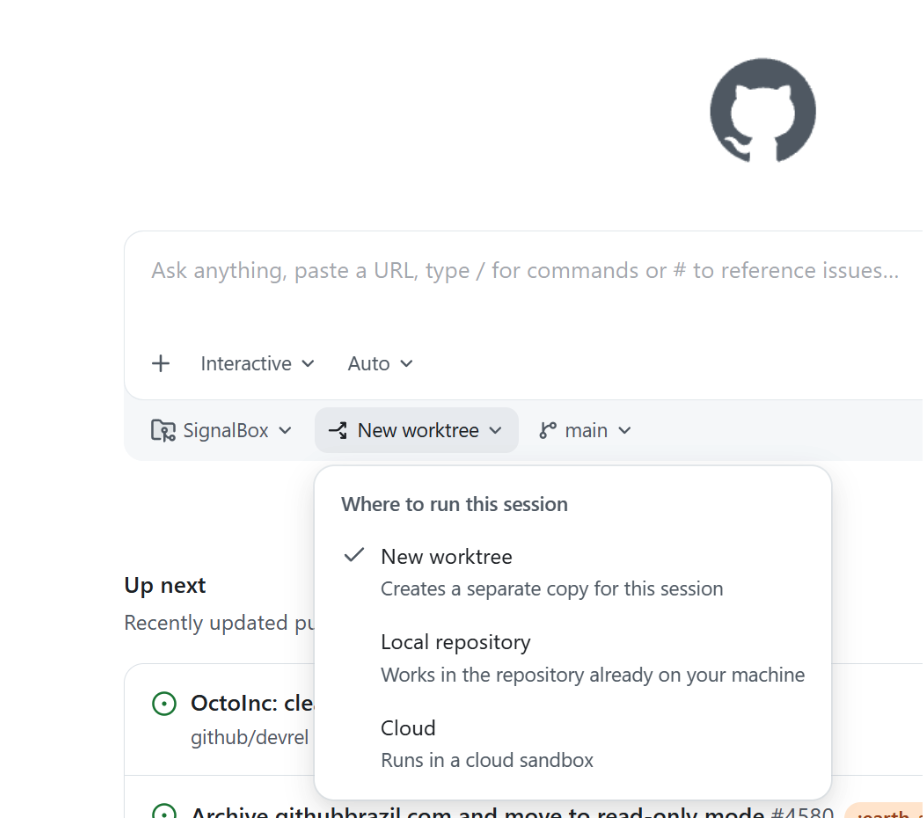
npm install or pip install across multiple of them, your computer might get very full, very quickly..gitignore requirements: if you create worktree folders inside your main repo directory, you have to manually add them to .gitignore to not accidentally track them. You can make these worktrees outside of your main repo (and many apps do that by default), but it’s worth noting.Great question! What’s awesome is… they “just work” out of the box. When you open the app, there’s a dropdown that asks you where you want to run your new session on the home screen. The default is a new worktree.
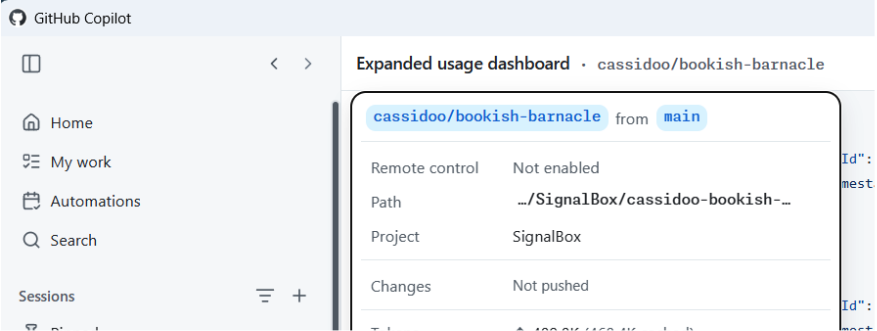
Then, once you kick off a new session, you can click the session name at the top of the app, and you’ll see the (fun!) generated name of your worktree, as well as the bath where it’s located, the project that worktree is for, and details about the changes that you’ve made.
Easy peasy lemon squeezy!
I will give you the most senior developer answer I can: It depends! You might prefer working in one way or another. You might not do as much work in parallel and like the mental model of branches and stashing. You might only do worktrees from now on. You might want to do both!
The world’s your oyster, and you can try them all in the GitHub Copilot app today.
The post What are git worktrees, and why should I use them? appeared first on The GitHub Blog.
Bug bounty programs provide a critical feedback loop for hardening complex platforms. Understanding researcher methodologies, such as source-to-sink analysis and exploit chaining, helps engineers build more resilient systems and better anticipate sophisticated attack vectors.
Experienced engineers demonstrate that AI tools are most effective when integrated with established practices like TDD and custom personas. This shift toward "agentic engineering" allows developers to focus on high-level design and architectural integrity while maintaining code quality.
Continue reading on the original blog to support the author
Read full articleThis workflow bridges the gap between AI-driven code generation and manual engineering, allowing developers to leverage AI for bulk tasks while maintaining full control over local testing, debugging, and final code quality within their primary IDE.
